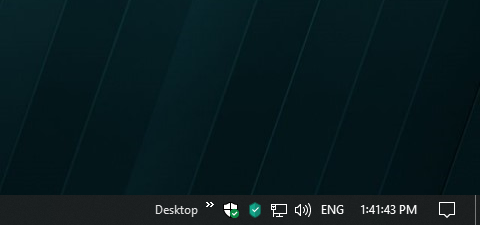
By default, Windows only displays hours and minutes in the taskbar clock. If you want to see seconds as well, you can enable the feature through a small Registry Editor change. The process only takes a few minutes and works without installing additional software.
Enable seconds in the Windows taskbar clock
1 Open the Registry Editor
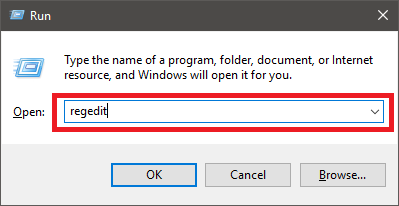
Press Windows Key + R, type regedit, and confirm with OK.
2 Navigate to the correct registry path
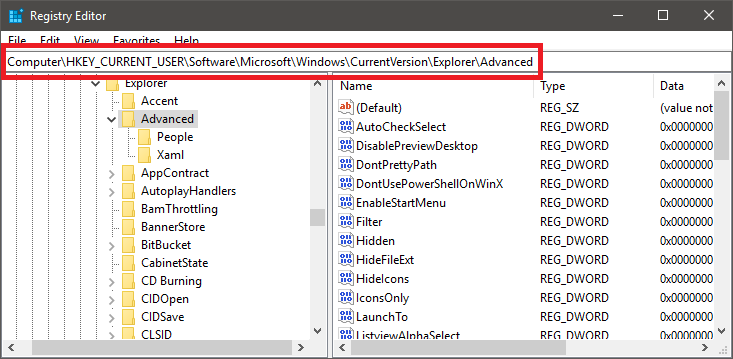
Inside the Registry Editor, open the following path:
Computer\HKEY_CURRENT_USER\Software\Microsoft\Windows\CurrentVersion\Explorer\Advanced
3 Create a new DWORD value
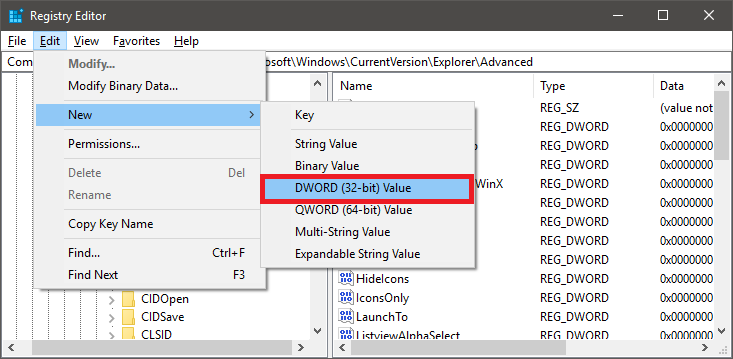
Click Edit → New → DWORD (32-bit) Value.
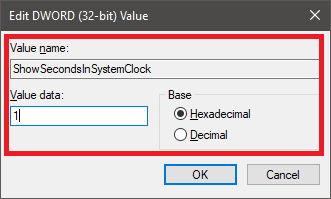
4 Configure the new entry
Name the new value:
ShowSecondsInSystemClock
Then set the value to:
1
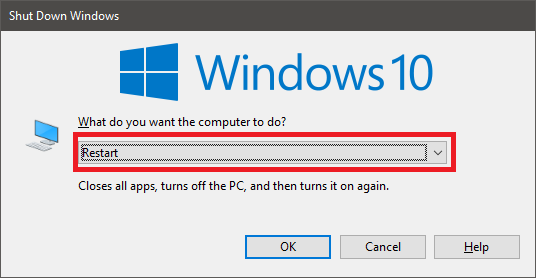
5 Restart Windows
Reboot your computer so the new setting can take effect.
6 Done
After restarting, the taskbar clock will also display seconds.

Note: If you want to disable the feature again, simply delete the DWORD value named ShowSecondsInSystemClock.
Alternative: Use the ready-to-import registry file
If you do not want to edit the registry manually, you can simply download and run the prepared .reg file below.

Important: After importing the registry file, do not forget to restart Windows.