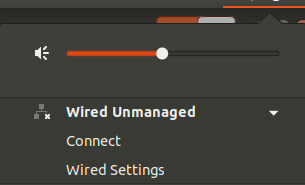
After installing or upgrading Ubuntu, you may notice that your wired network connection is marked as unmanaged. In this state, NetworkManager no longer controls the Ethernet interface, which can prevent you from configuring or using the connection properly.
Fortunately, the issue is usually caused by a small configuration problem and can be fixed within a few minutes.
Fortunately, the issue is usually caused by a small configuration problem and can be fixed within a few minutes.
How to fix the “device not managed” issue
1 Open the NetworkManager configuration
Open the following configuration file as root using your preferred editor:
/etc/NetworkManager/conf.d/10-globally-managed-devices.conf
If the file does not exist, simply create it.
2 Add the required configuration
Insert the following content into the file:
[keyfile] unmanaged-devices=none
3 Restart NetworkManager
After saving the file, restart the NetworkManager service with the following command:
sudo systemctl restart NetworkManager
4 Done
Your wired network connection should now be managed correctly again and appear normally inside the Ubuntu network settings.
Tip: If the issue still persists, try rebooting your system after restarting NetworkManager.